
FTire: Real-Time Licensing
License Service used for cosin products
A special additional license is required for licensing Real-Time (RT) simulations. Since RT capability depends largely on the hardware used, this license is only available as a node-locked version, meaning that the RT license is only available for a specific system. Licensing can also be carried out here via the OLicense server, as described in the general licensing section (see 📄 OLicense Server).
However, if no OLicense server is available or if a server is not used for specific reasons, there is an alternative method for RT licensing that is based purely on an OLicense file. This alternative method is explained here for the sake of completeness.
System Identification
cosin Installation
On the Linux system, on which FTire shall be installed, place the downloaded tar ball of the FTire installer (cosin Download Portal) at an arbitrary location, e.g. :
- /opt/
and unpack the cosin installer via the terminal command
- tar xfz cosin.20XX-Y-RevNr.x86_64.tar.gz
If you have a license file available you can start the cosin GUI via the terminal command
- /opt/cosin/cosin &
to configure the license setting (see Figure 2 further down).
Get System Fingerprint
If no license file is available, you need to generate the fingerprint of the system, so that the node-locked license can be generated. Without a FTire installation this can be done via the download package for the Olix-Tool on the right hand side.
To generate a new license select the OLix Tool provided in the downloaded folder, which is matching your Operating System. Please keep in mind, that RedHawk is different for RHEL-based and Ubuntu-based linux systems. For creating the license key unpack the suitable olixtool package at an arbitrary location (e.g.: /opt/) via the terminal:
- tar xfz olixtool_RHXY.tar.gz
Afterwards run the following command
- /opt/cosin/bin/linux64/olixtool -hid
which generates an output similar to this
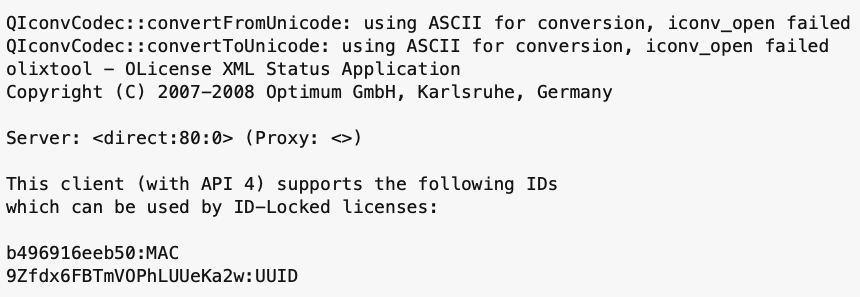
Figure 1: Olix-Tool Output for system specification
Copy the output text to avoid typos and send it to licensing@cosin.eu. In addition, send all customer information and the email of the person of contact to whom your license file shall be send now and in the future.
License Activation
For HiL-AC applications are two different types of license files available, one FTire/hil and one FTire/road. Both files are of type server-less and have to be named exactly as
- OLicense.olixml
To use one or both files, they have to be configured in the cosin license panel.
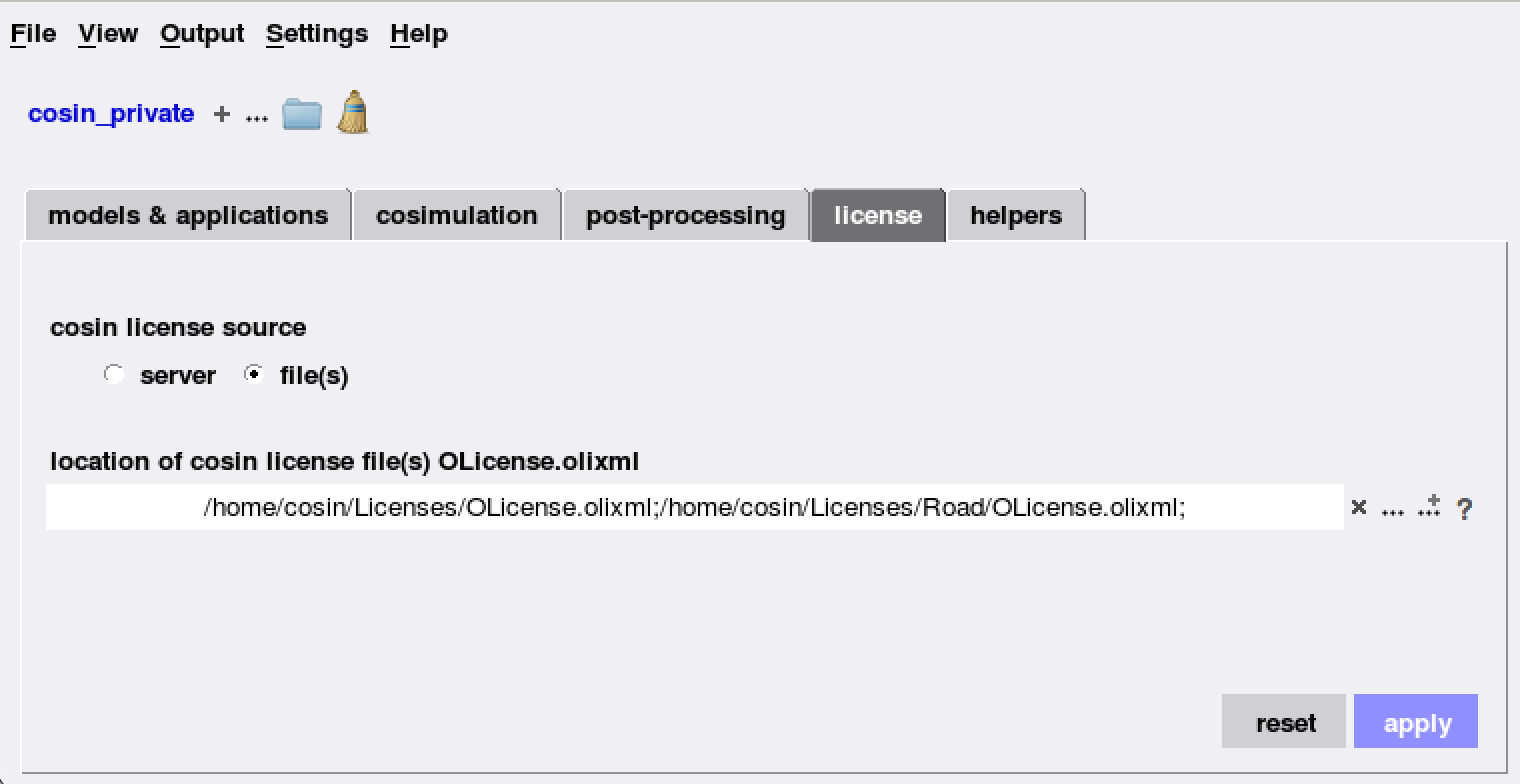
Figure 2: cosin GUI License Settings
Here, as a file is used, you need to select the cosin license source as a file as shown in Figure 2. Additionally, the full path of one or two license files needs to be entered in the location specification field. To use more then one license, the license files need to be separated by a semicolon (";"). Example for using two license files:
- /home/cosin/Licenses/FTire/OLicense.olixml;/home/cosin/Licenses/Road/OLicense.olixml
After hitting the apply button, cosin will check if the referenced license file is valid or not for the underlying hardware. If the check is OK, you will see the cosin GUI as shown in Figure 3.
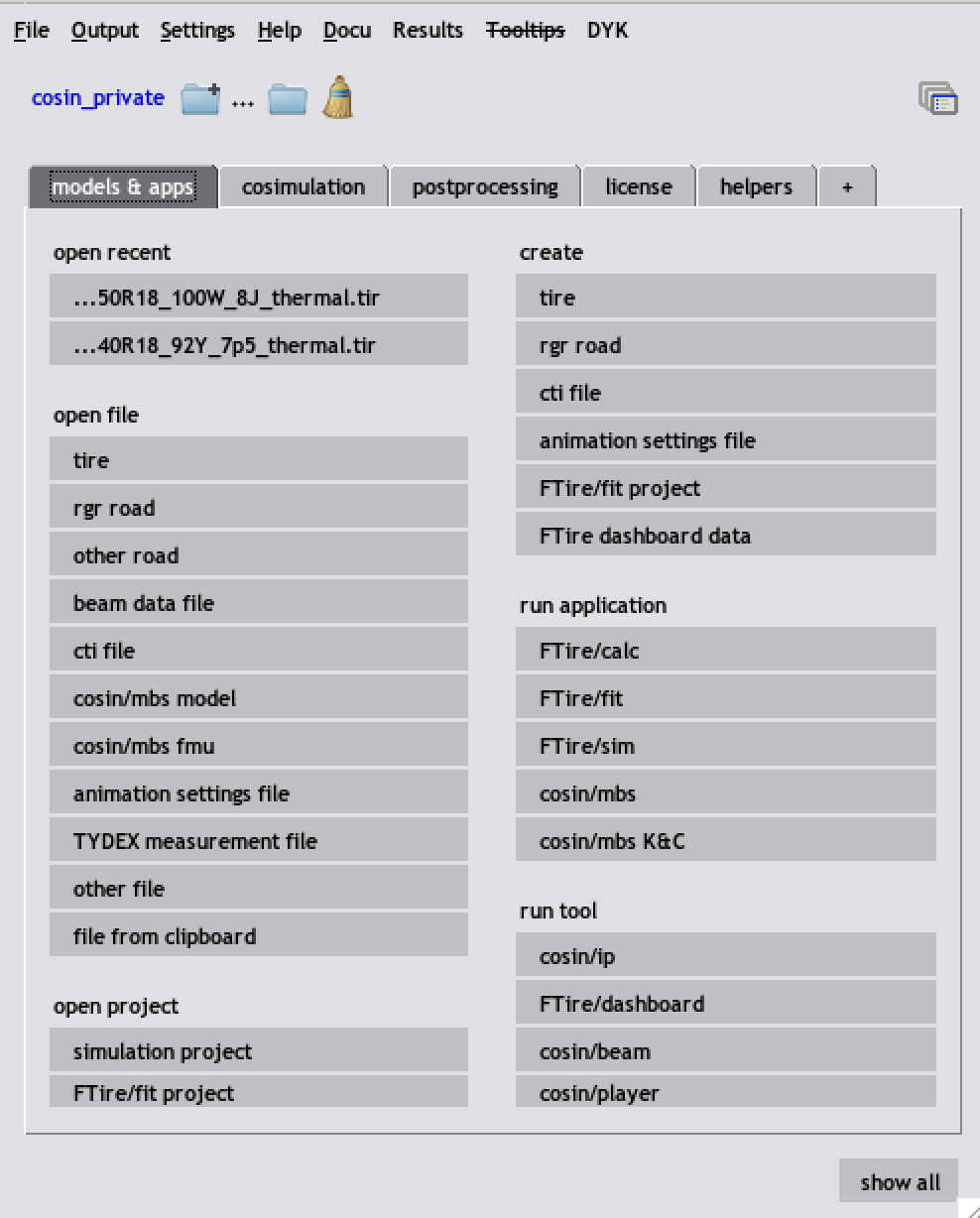
Figure 3: cosin GUI with valid License
Now, FTire can be called by any solver, who calls FTire directly. If the solver uses Environment Variables, make sure to set the cosin installation path correctly, in our setup to
- COSIN_PREFIX=/opt/cosin/
and add the same path for the license files as shown in Figure 2 to the Environment Variable to specify the licnese file(s).
- COSIN_LMSERVER=/home/cosin/Licenses/FTire/OLicense.olixml;/home/cosin/Licenses/Road/OLicense.olixml
Certified License
The Certified License Mechanism for FTire, introduced by cosin company, is a specialized licensing framework aimed at facilitating the evaluation and demonstration of FTire models in Real-Time simulation environments. This mechanism is specifically designed for partners and evaluators, allowing them to access a curated selection of FTire models. The certified models are optimized for integration into Real-Time simulation systems, such as driving simulators, ensuring that users can effectively demonstrate and experience the capabilities of FTire in various scenarios. The certified license is intended to support collaboration among industry partners, research institutions, and educational organizations. Users must adhere to the terms and conditions outlined in the licensing agreement, which governs the use of the FTire models and ensures compliance with cosin's standards.
Using the certified license mechanism, users can utilize only a limited set of FTire models that have been officially validated and signed by cosin for a specified version of FTire. Any change of the FTire version or changes to the FTire model parameters will block a further usage of the underlying signed tire.
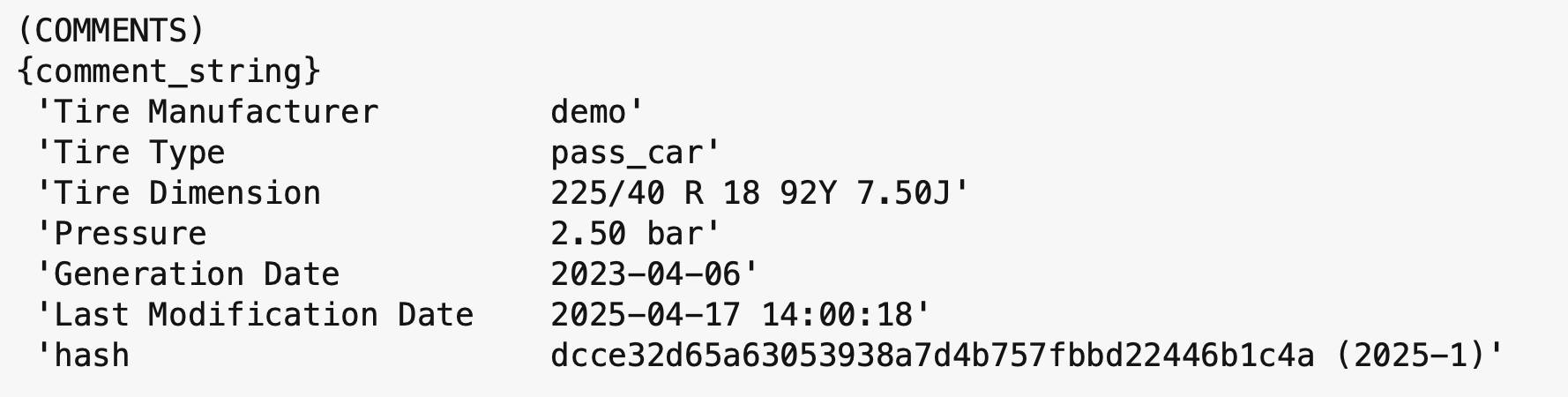
Figure 4: Tire File Hash information for usable FTire version 2025.1
Figure 4 shows the header of a signed FTire file, in which a hash for the respective version 2025.1 is integrated. Such a file can only be used for the specified version if a certified license is used. Of course, such a tire can also be used withou any restrictions with a standard license for FTire. To identify, which kind of license is currently in use, one can use the License View on the OLicense server (see 📄 OLicense Server) or check the underlying OLicense file directly.
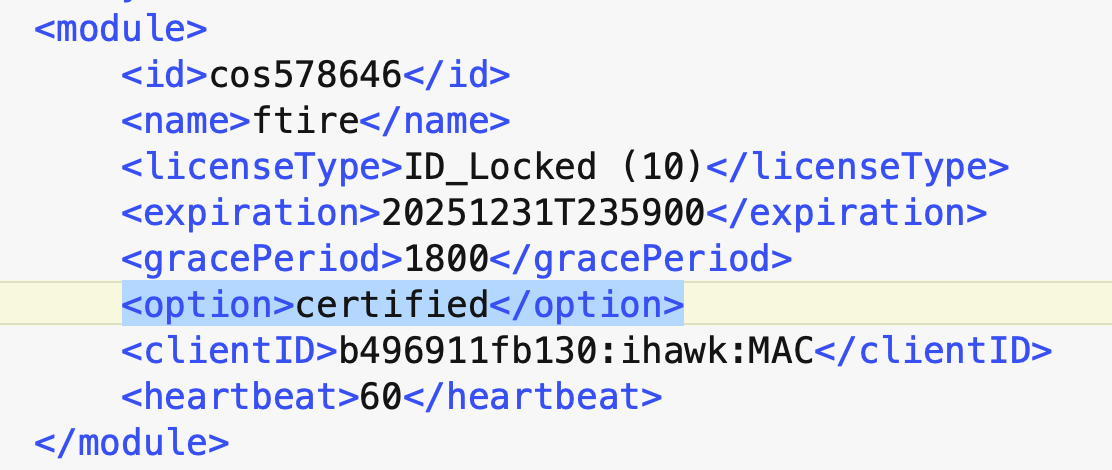
Figure 5: Certieifed Option within the Olicense File
Within the "ftire" module of the license file shown in Figure 5, there is an option field which is showing, which kind of license version is used for FTire. The "certified" option is limitting the usage to only signed FTire files. The "certified_drm" option is additionally requiring a DRM encrypted RGR road, which means that just a predefined Demo setup can be used, where the FTire model and the used RGR road is predefined. A Demo Setup is a cost-free version to demonstrate and experience FTire and its benefits in a RT environment.